Picking a Launcher
Launchers allow you to open and switch between applications. Without them there is no way to run third party applications from the user interface. You would have to SSH into your device to launch them every time you wanted to use them.
After you've installed Toltec, you will need to install a launcher. Currently there are three launchers in toltec. Of which we only recommend two for use: Oxide and Remux. There is also AppLoad, but that will require manual installation until it's included in Toltec.
Contents
Oxide
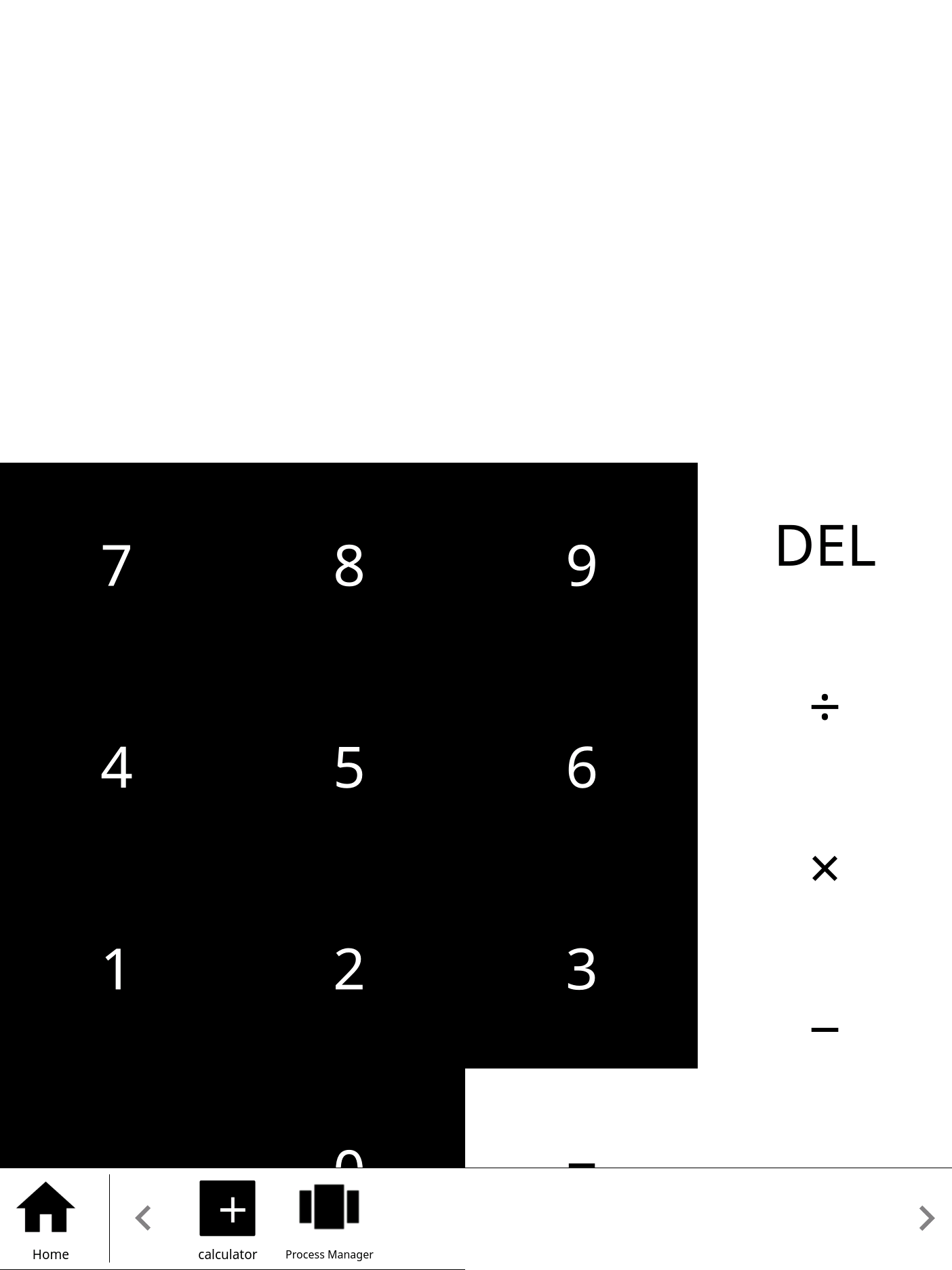
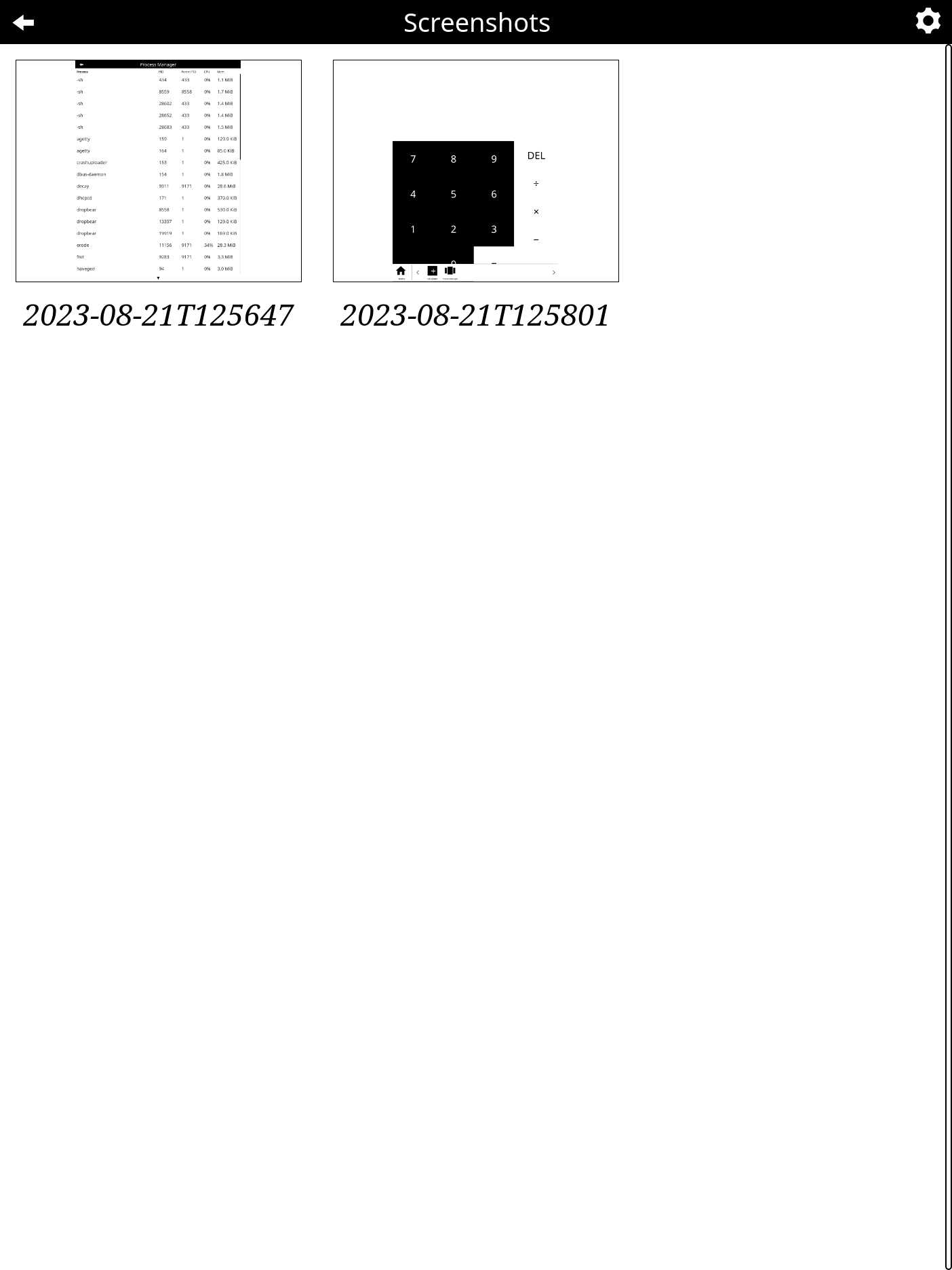
Oxide is a desktop environment for your device.
Screenshots
 |
 |
 |
|---|---|---|
 |
 |
 |
Features
- Multitasking / Application switching.
- Wifi management.
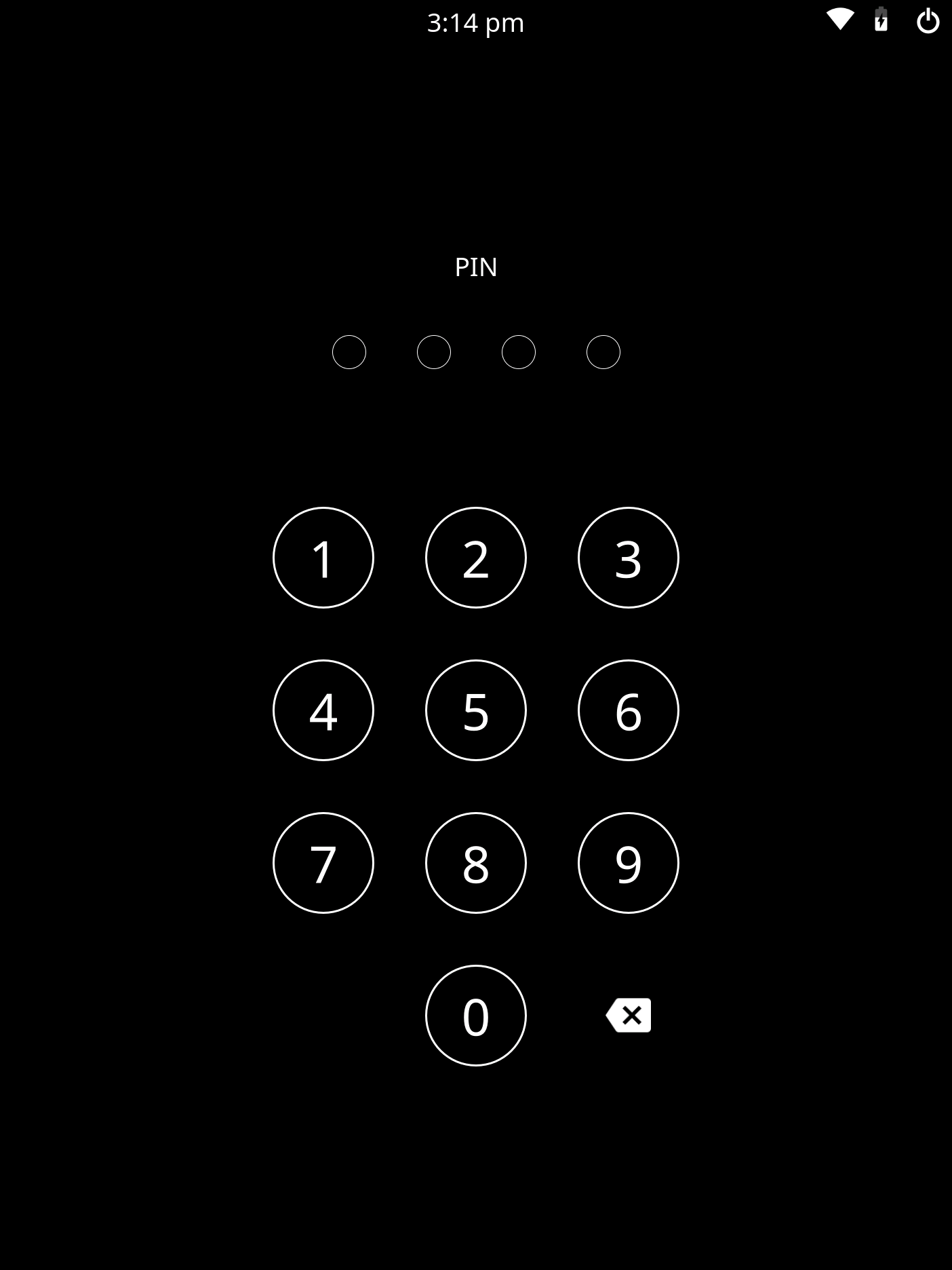
- Optional system lockscreen.
- Automatically suspend tablet after inactivity.
- Pause backgrounded apps.
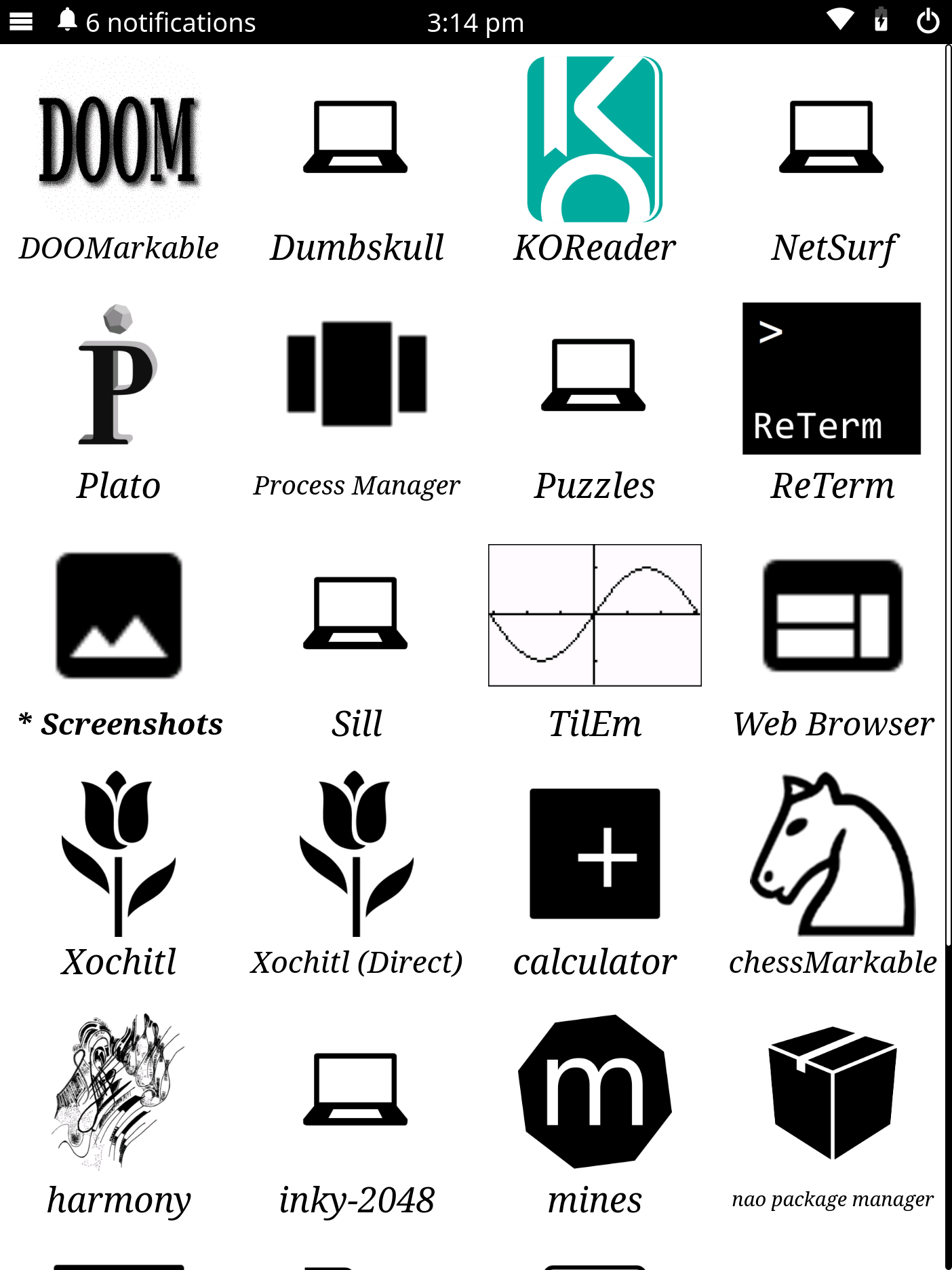
- Homescreen for selecting applications.
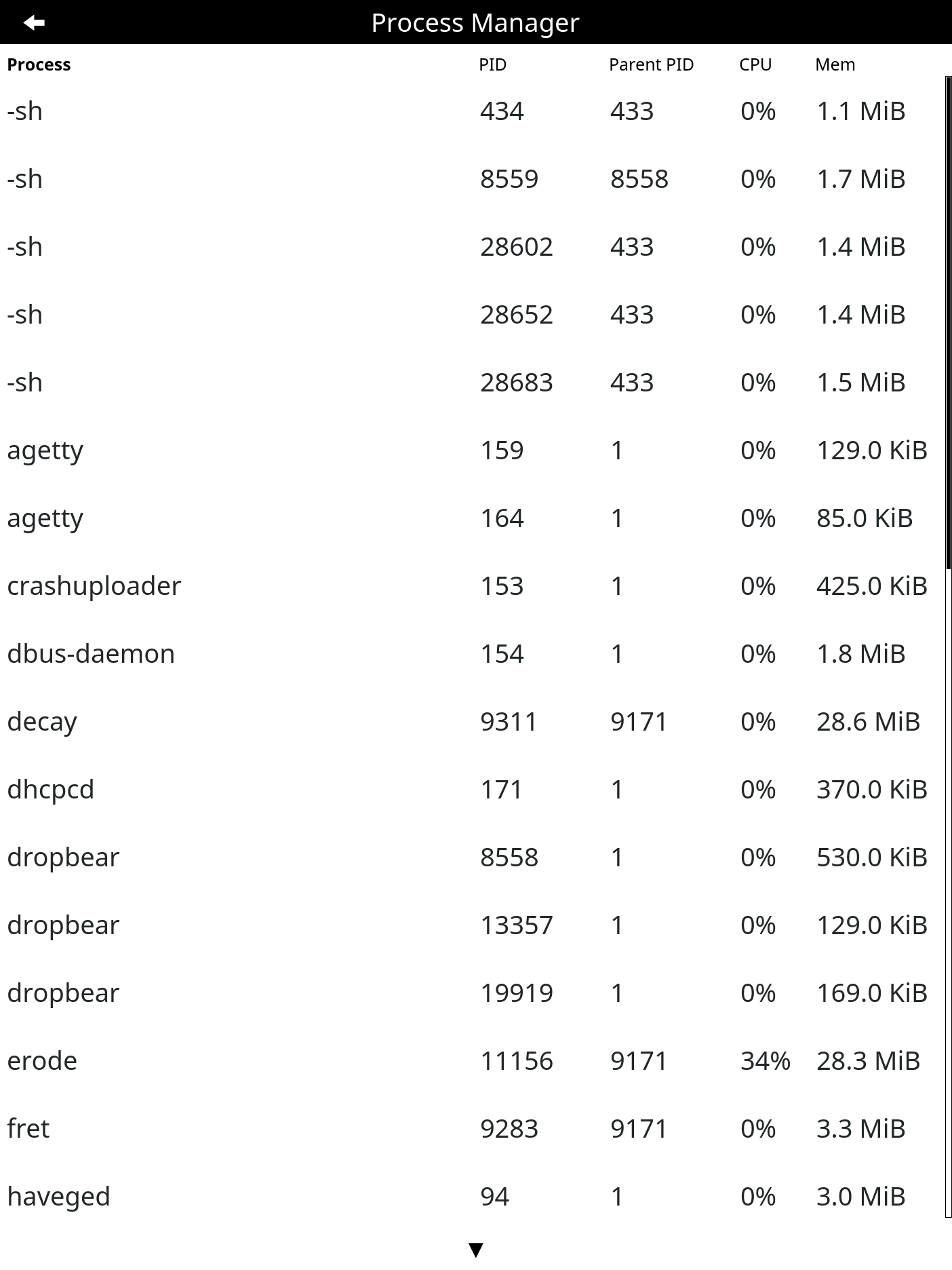
- Process manager.
- Take, view, and manage screenshots.
- Displaying notifications.
- APIs that applications can use to interact with various portions of the environment.
Installation
opkg install oxide
launcherctl switch-launcher --start oxide
Remux
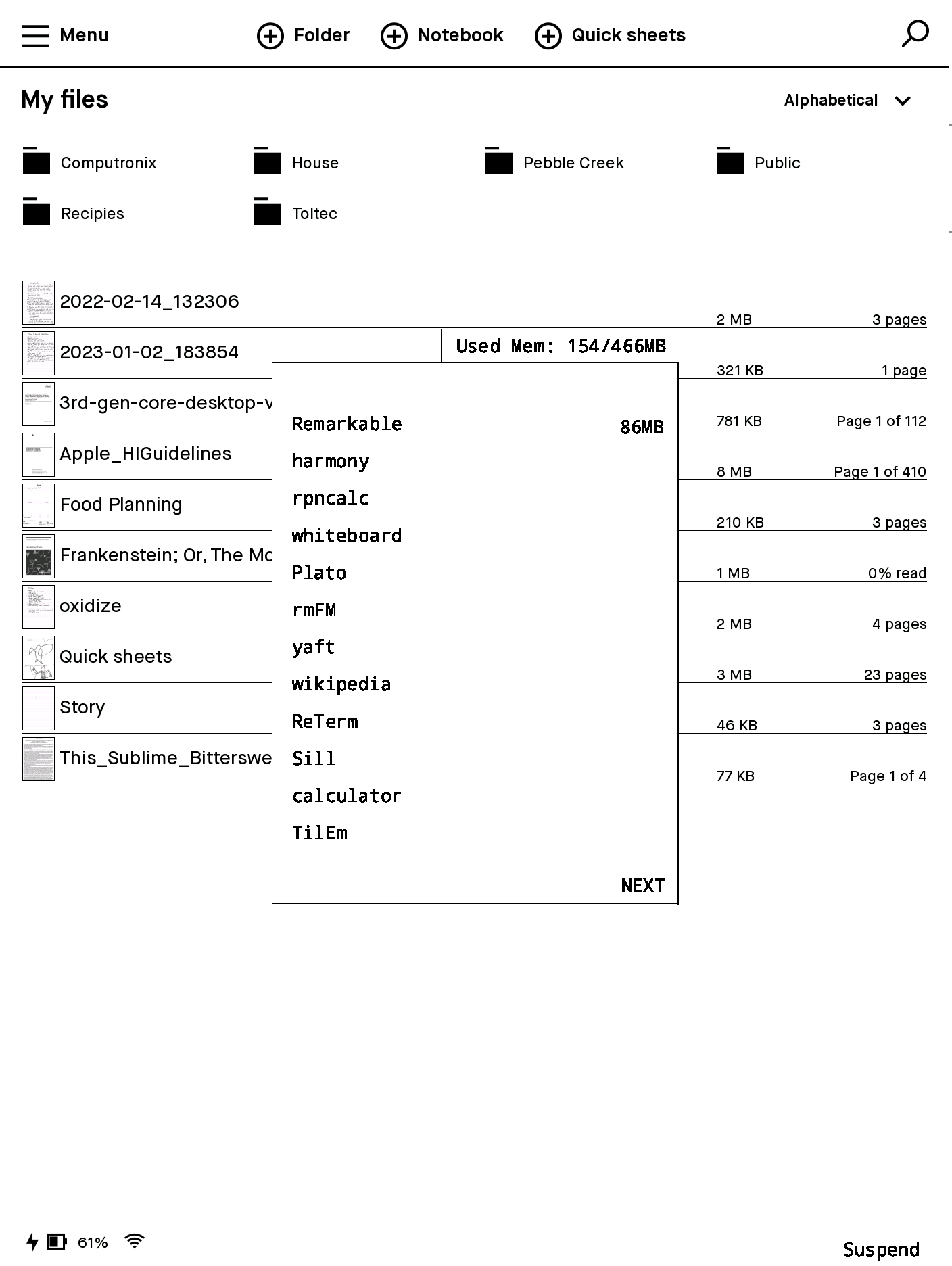
Remux is a launcher that does its best to stay out of your way.
Screenshots
 |
|---|
Features
- Multitasking / Application switching
- Automatically suspends tablet after inactivity.
- Pauses backgrounded apps.
- Ability to stop running applications.
Installation
opkg install remux
launcherctl switch-launcher --start remux
AppLoad
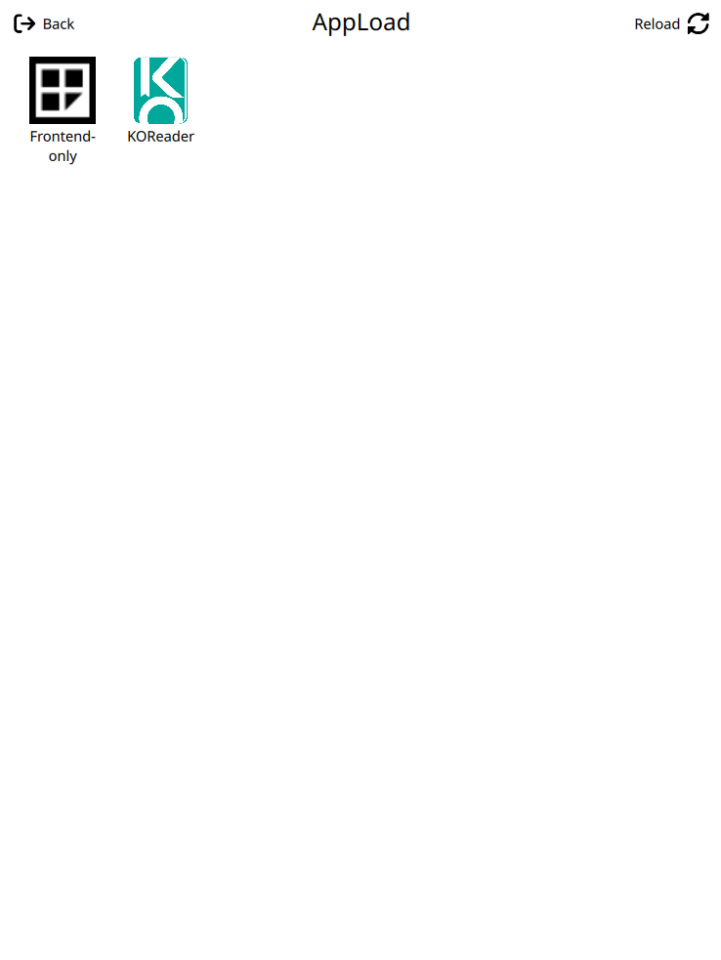
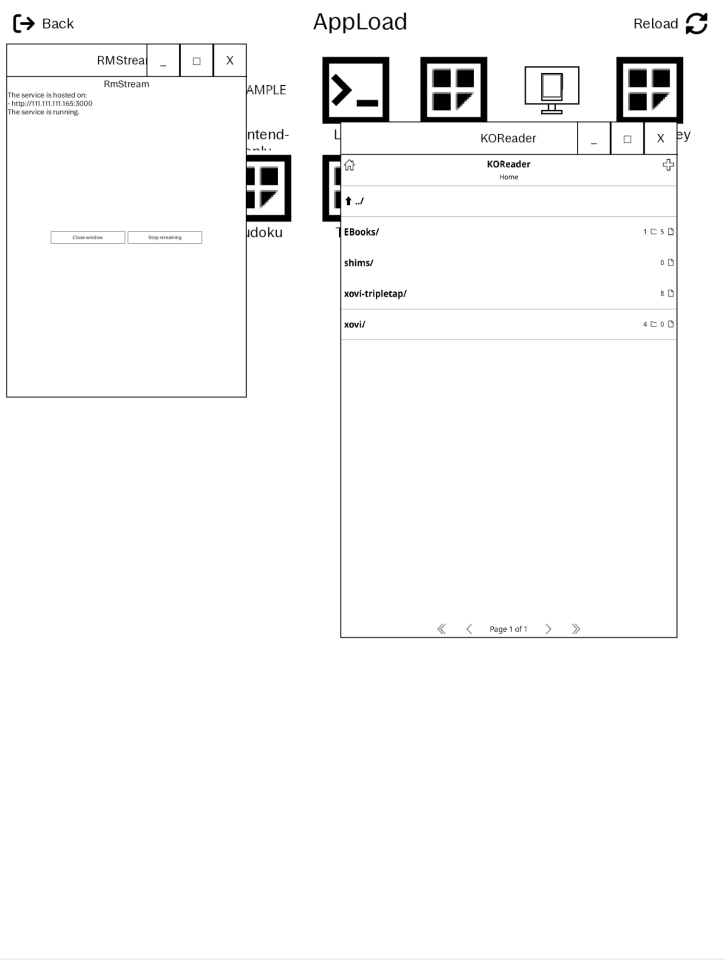
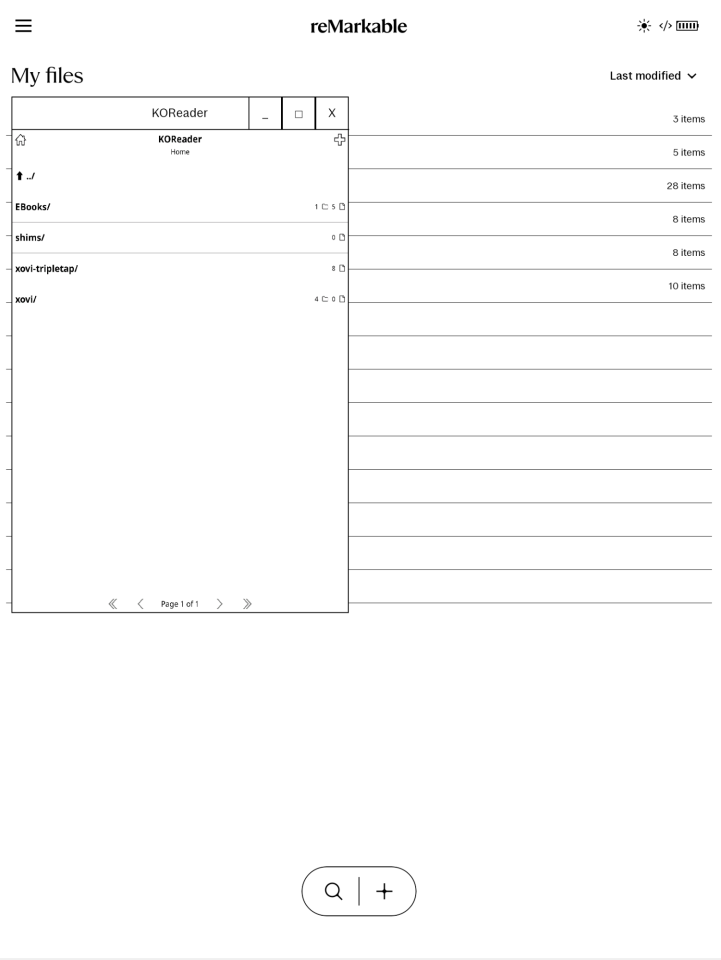
AppLoad is a xovi extension that allows running applications directly in xochitl.
Screenshots
 |
 |
 |
|---|---|---|
Features
- Multitasking / Application switching.
- Runs applications as windows inside the main UI application.
Installation
There is no way to install AppLoad with toltec currently.